Step 1
Before you open
The staff view runs the queue. Open it on the computer or tablet at the counter before the first visitor arrives.
The most important thing: tap Call next when you're ready for the next visitor. The visitor gets a notification and the number shows on the screen. The rest is good to know.
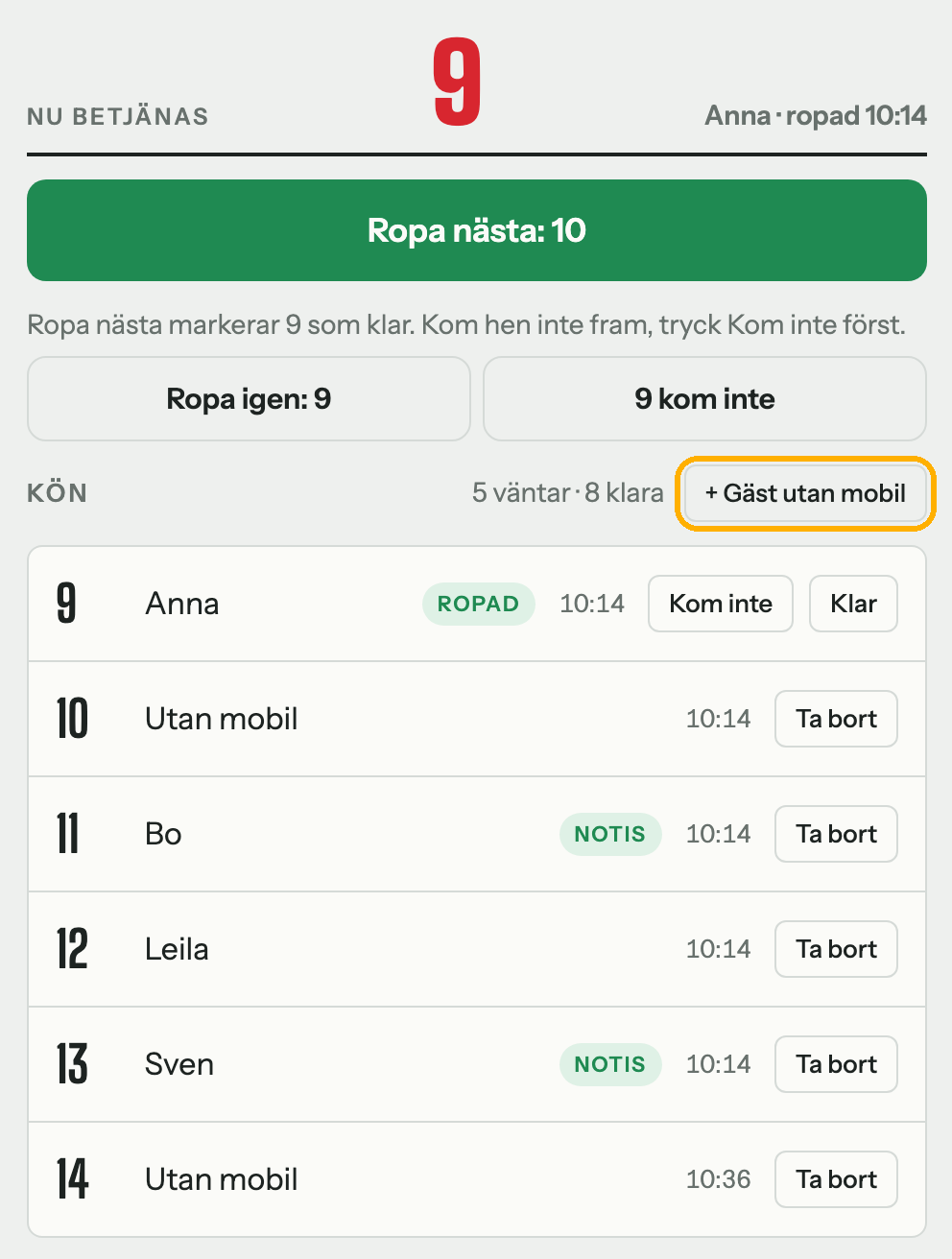
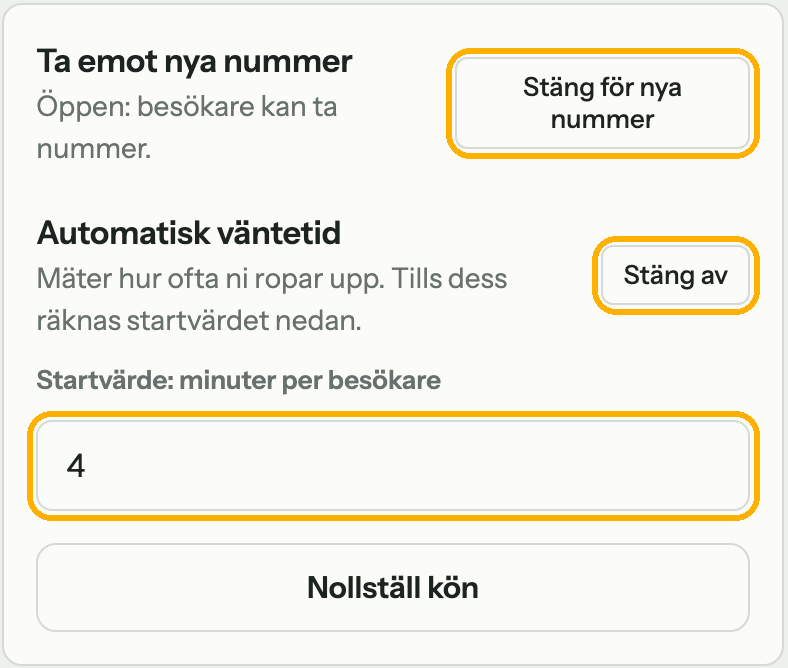
The yellow frame in the pictures shows where to tap.
The staff view runs the queue. Open it on the computer or tablet at the counter before the first visitor arrives.
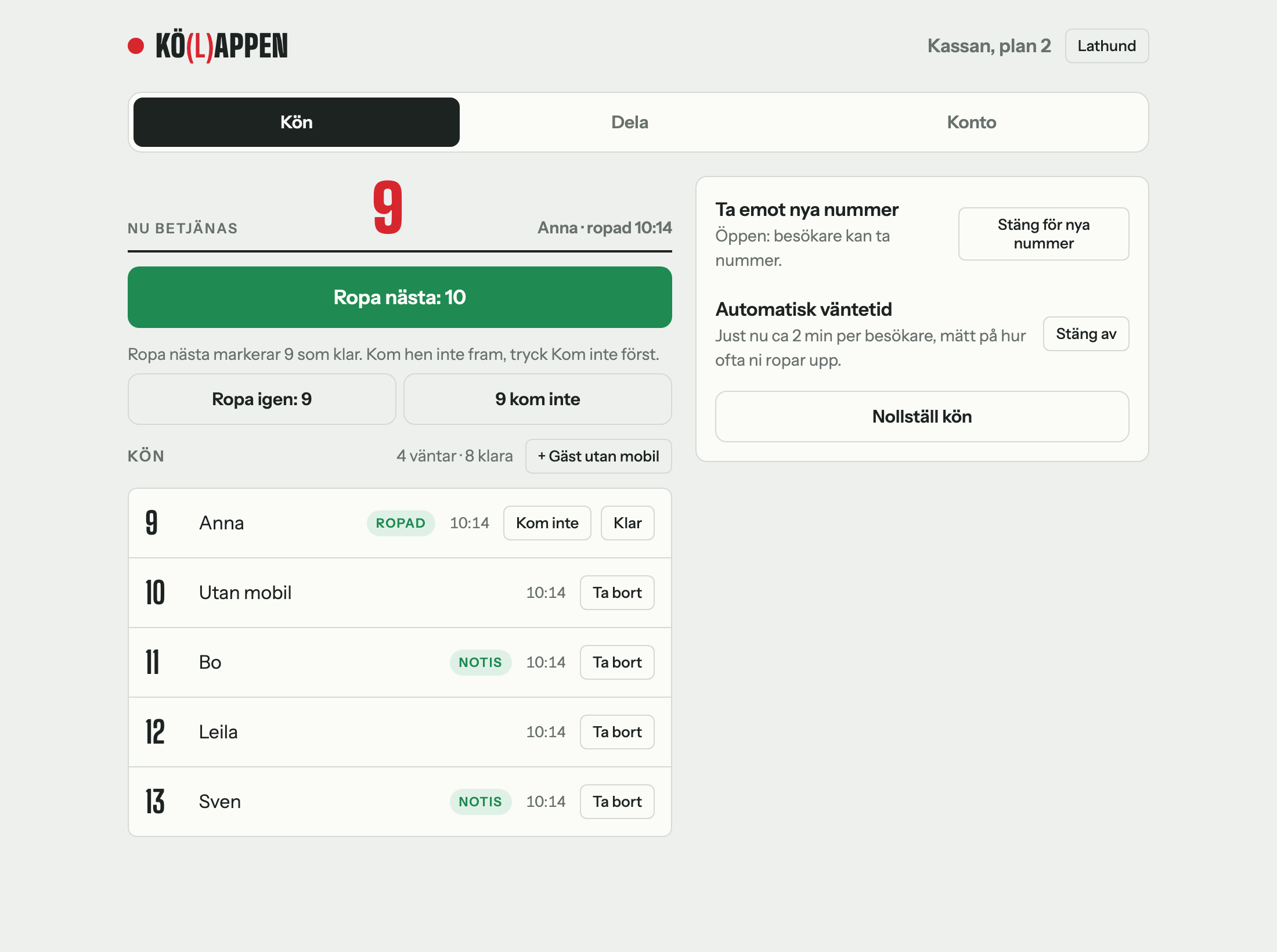
Visitors scan the QR code with their phone camera. Anyone who can't scan enters the code below the QR code at qslip.app.
The QR code and the code never change for the queue. Tap Print QR code under the Share tab, so you can print it once and put it up.
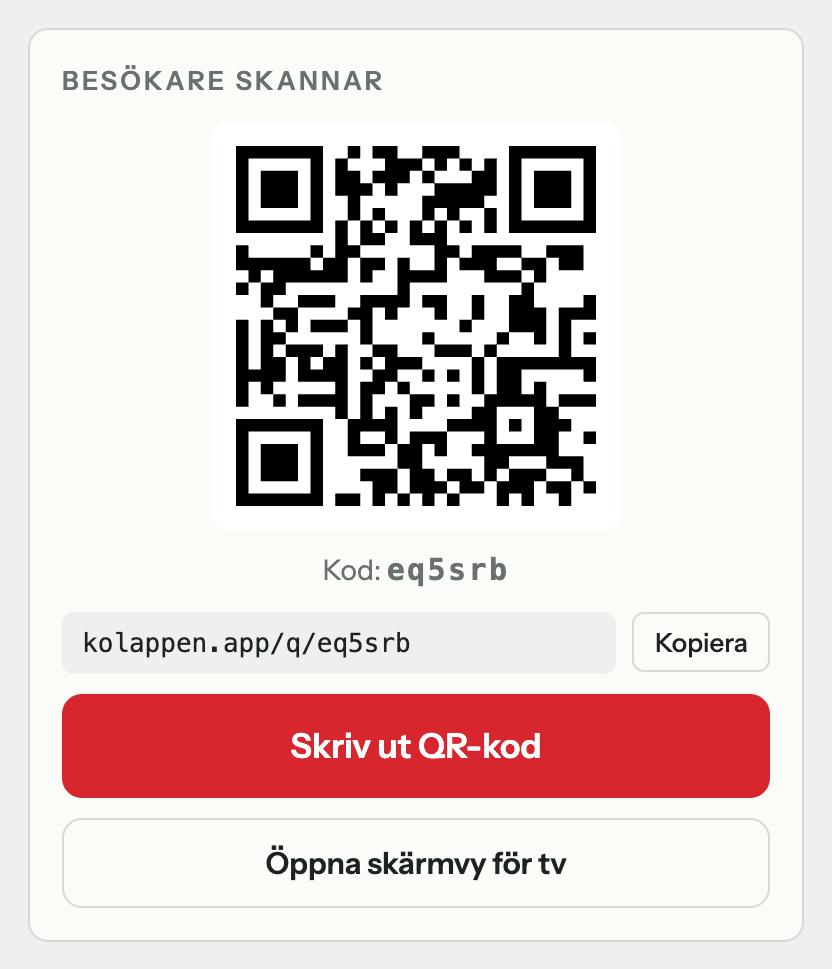
Nobody coming? Tap Call again. The visitor gets a new notification and the screen flashes. If still nobody comes, see The guest didn't show.
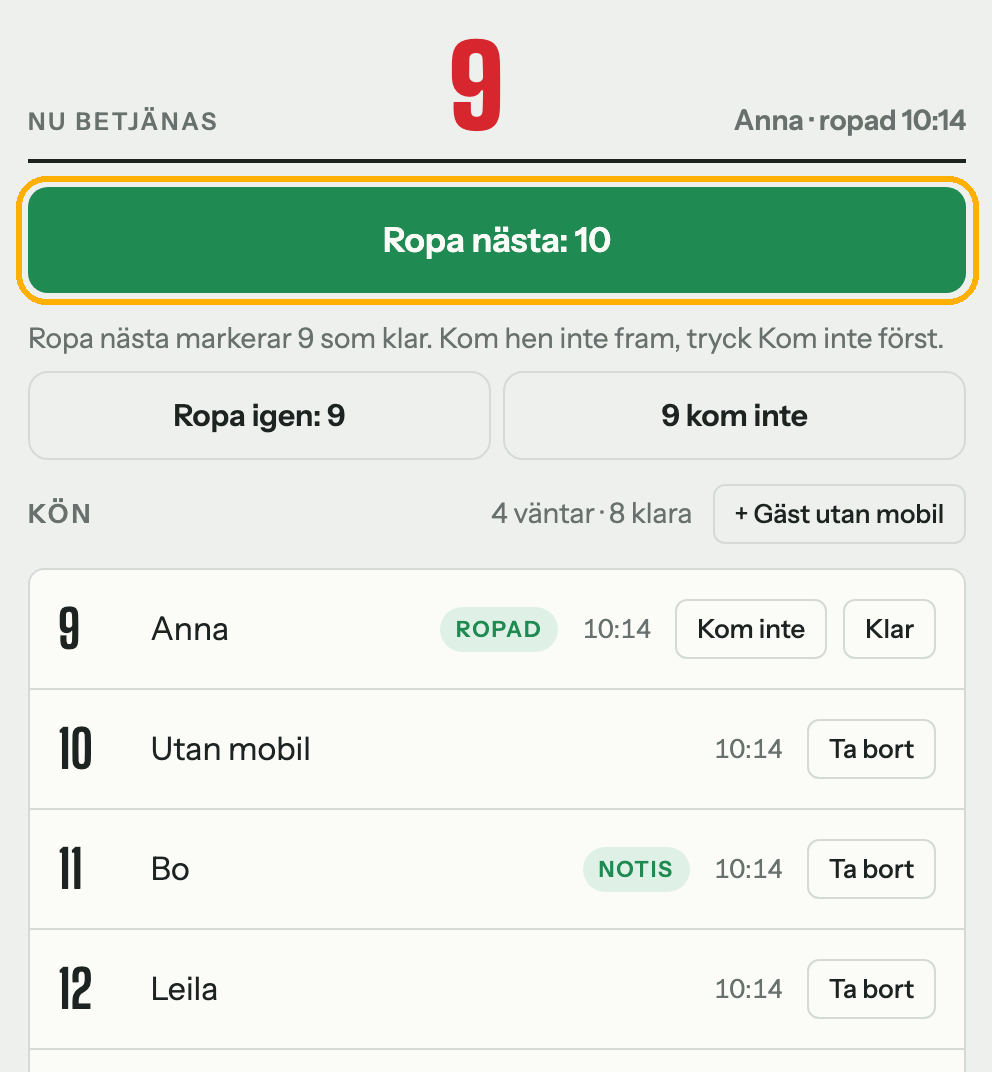
The list shows the called number at the top and then everyone waiting, in order.
You don't need to tap Done between visitors. Call next marks the previous one as done automatically. Done is only used for the last one when the queue is empty. After Done, the number stays, dimmed under Last called, in the staff view, on the TV screen and on visitors' phones until you call the next one. That way everyone sees that nobody is being served right now. Didn't the guest come forward? See The guest didn't show before you call next, otherwise they count as done.
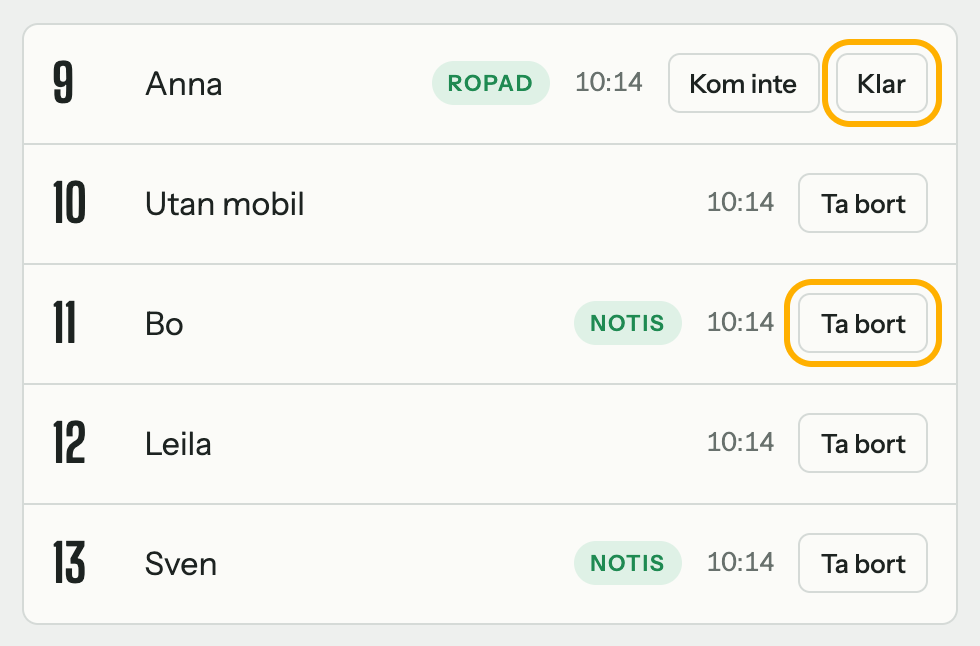
To mark it right away, for example when the guest has already said they won't come, No-show is also on the called row in the queue.
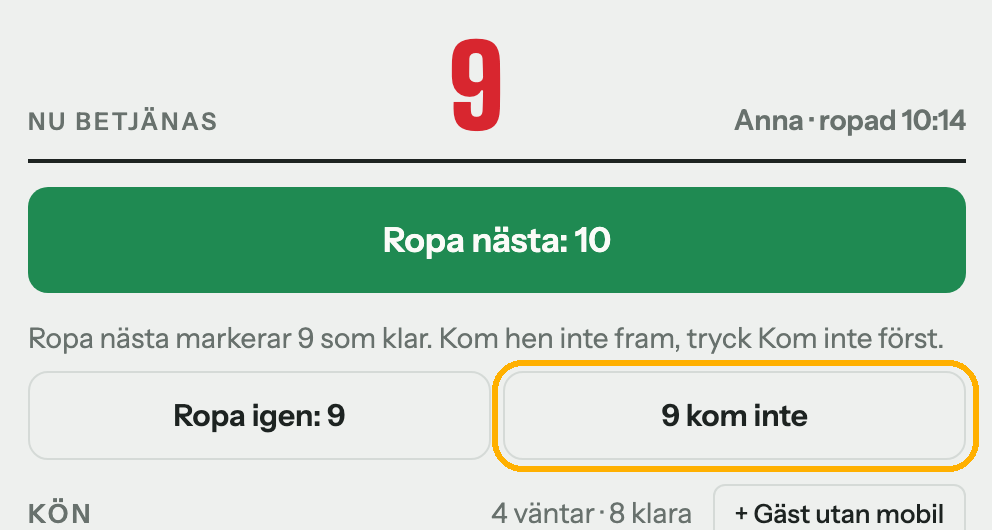
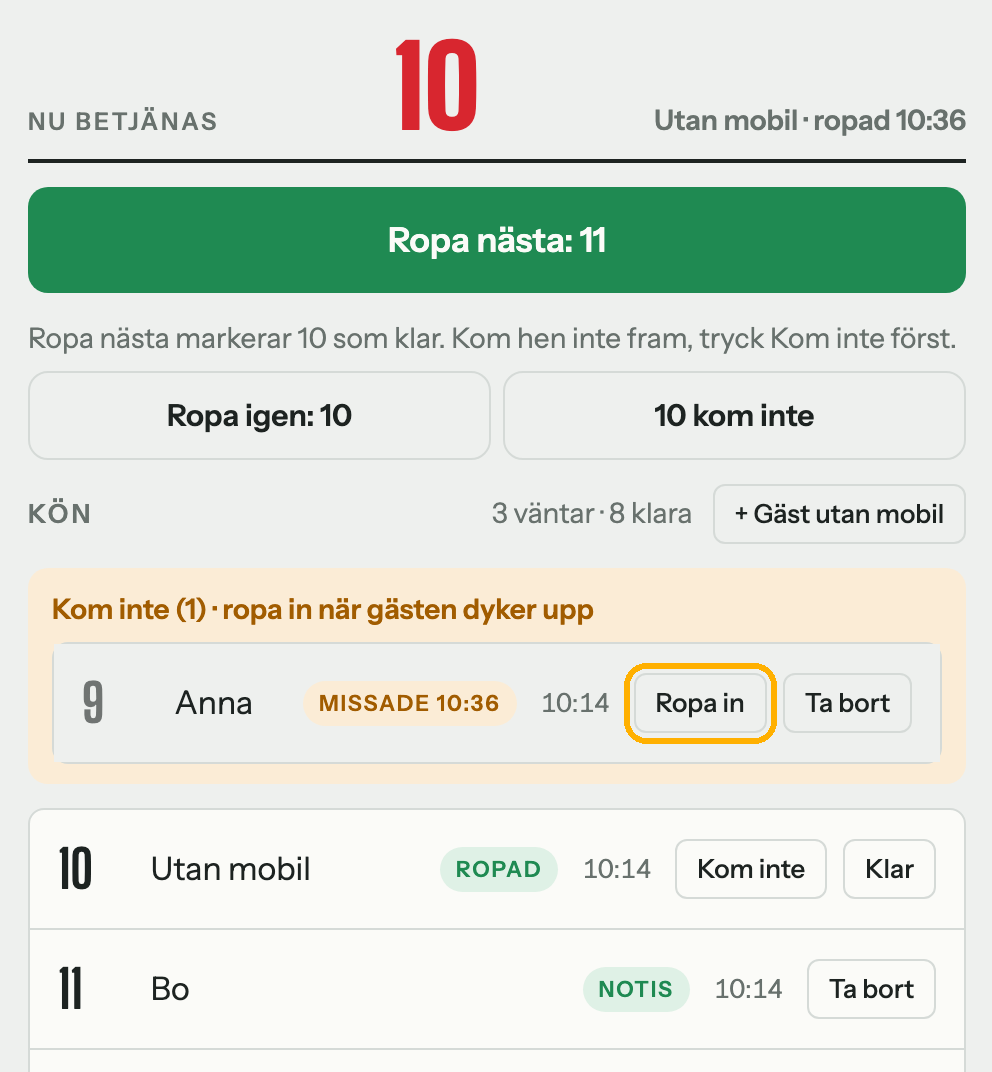
This works even when the queue is closed to new numbers.
If you have, for example, check-in and check-out at the same reception, a desk can call from both queues with the same button. Guests take a number in their own queue, and staff don't need to keep track of whose turn it is.
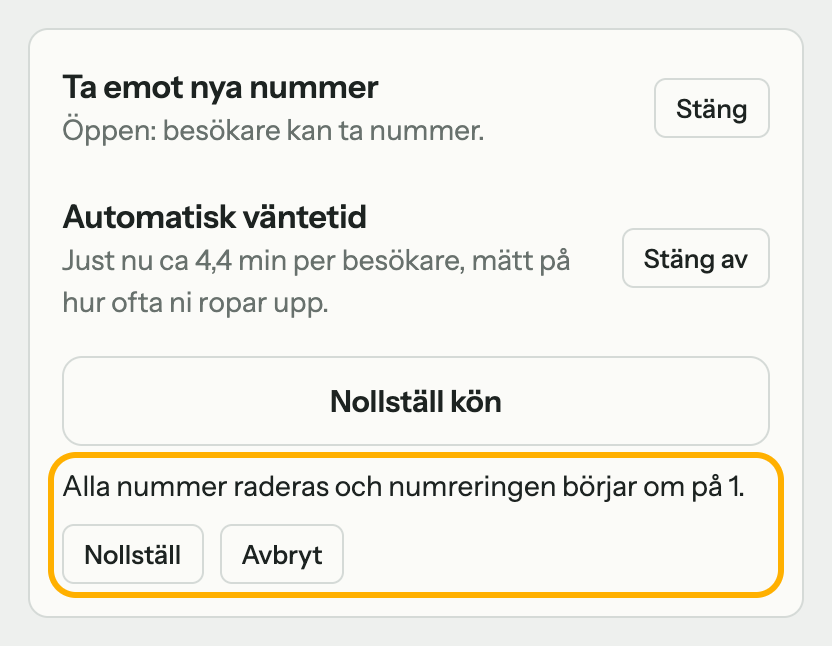
The Lanes box under Queue applies to the whole desk, whichever lane the page was opened from. There you open and close each lane, change names and letters, turn automatic wait time on and off and reset all lanes at once.
Under Account, the lanes are listed under their desk in the Your queues box. There you edit the desk, take a lane out of it or remove the whole desk, so the queues are called separately again. A queue can only belong to one desk.
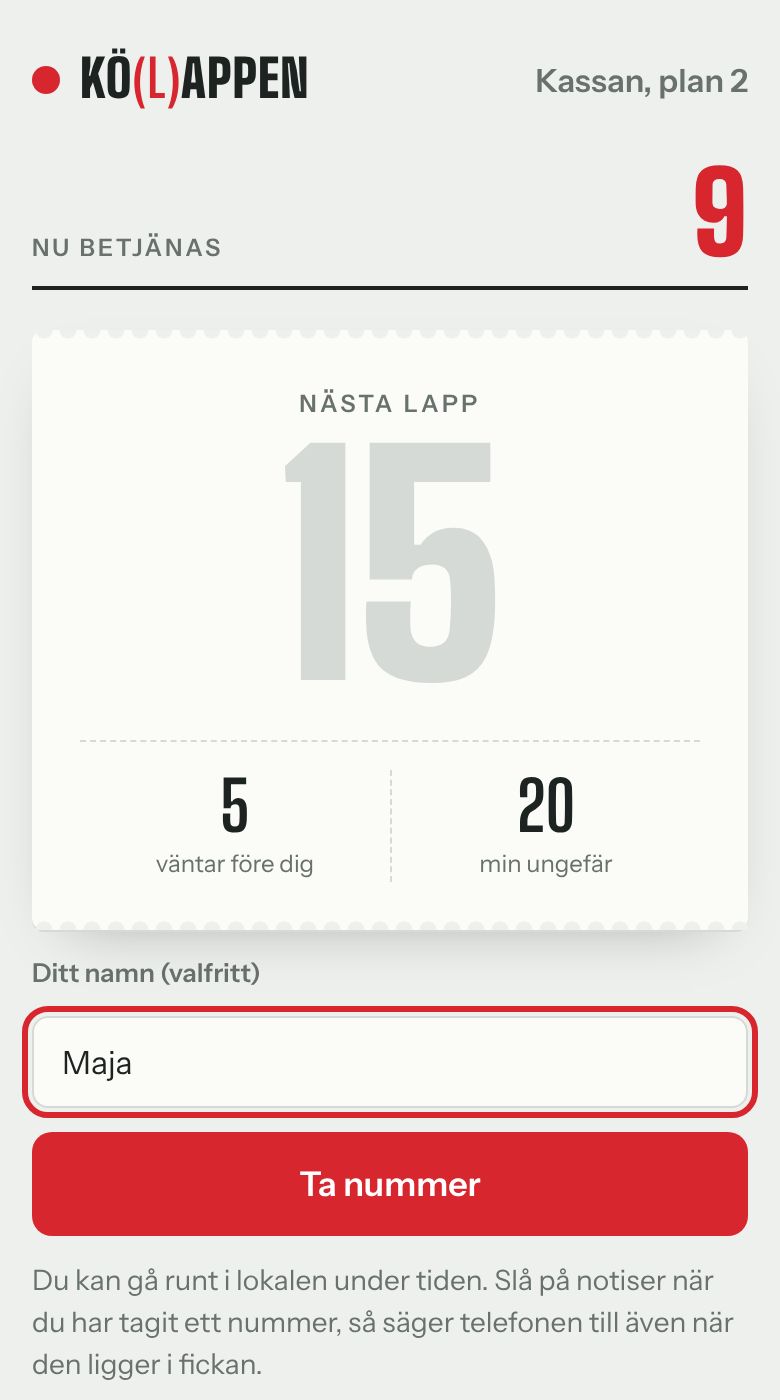
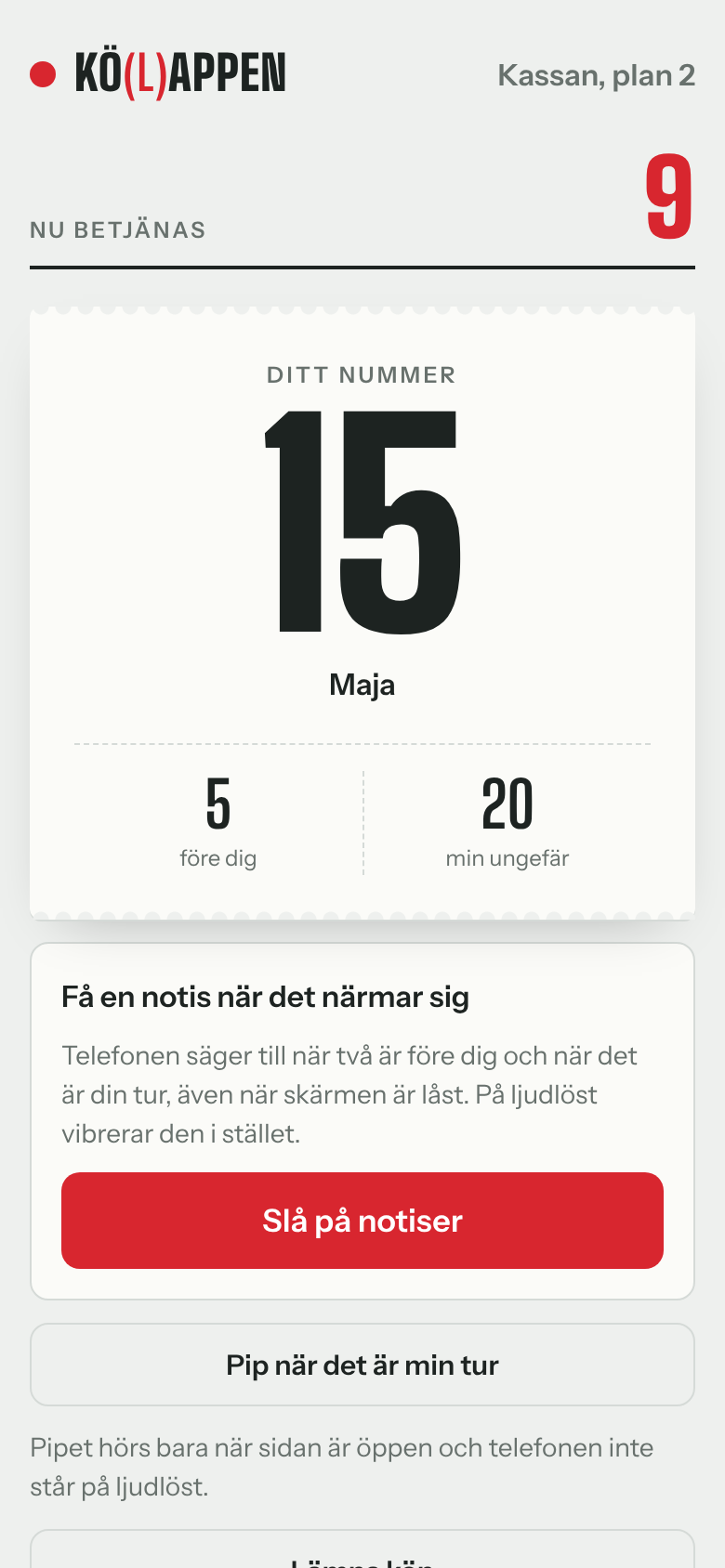
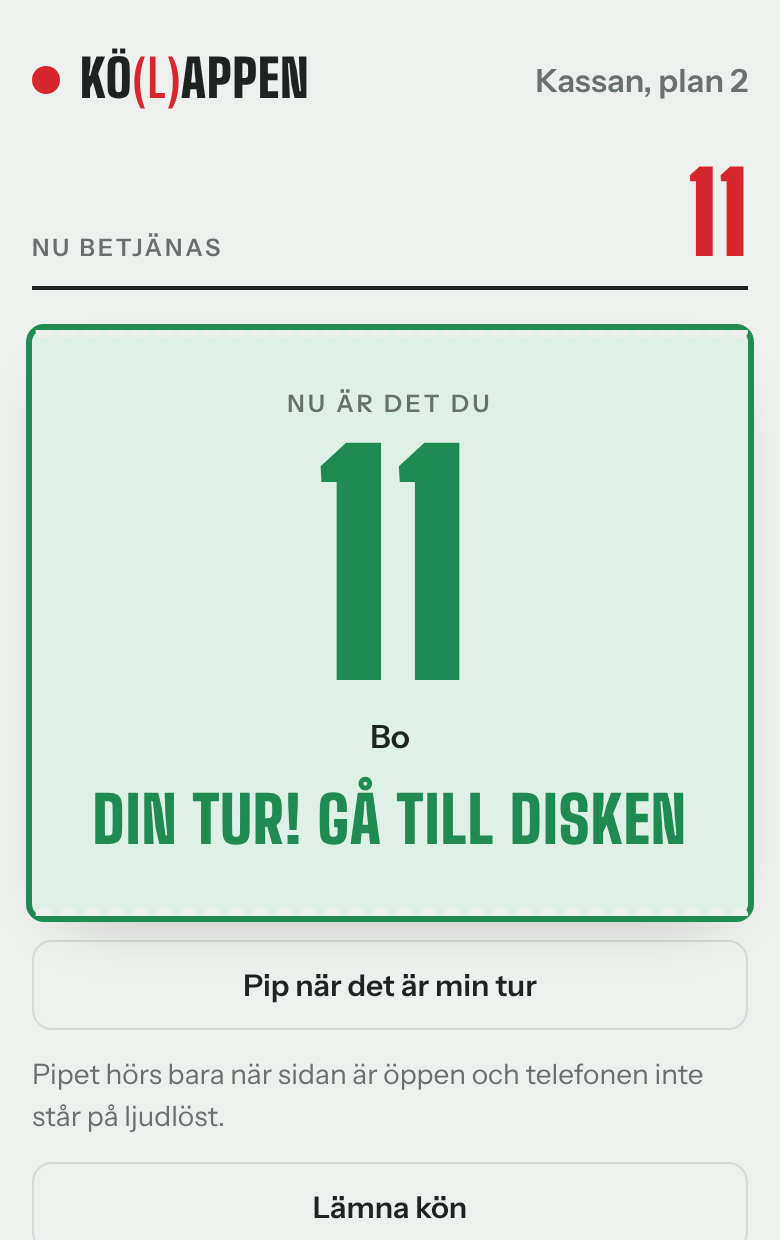
This is what it looks like on the visitor's phone, so you can answer questions.
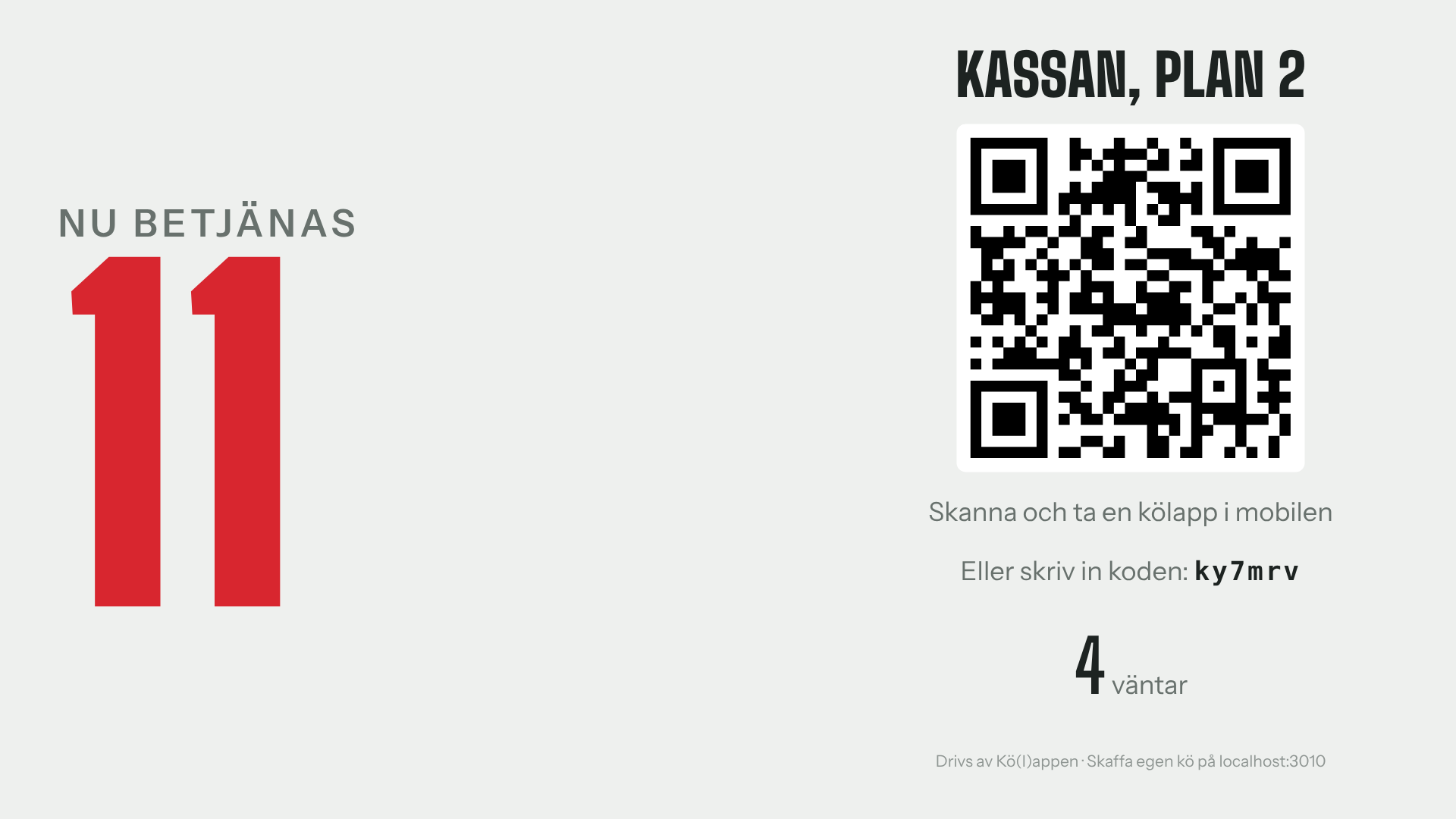
The screen view shows the number being served (or Last called, when nobody is being served), how many are waiting, the QR code and the code. The number flashes when you call next or call again. It updates by itself, you don't need to touch it.
| The visitor says | You do |
|---|---|
| “I missed my turn” | If the number is in the No-show box: tap Call in when you're free. Otherwise see the guest right away if you can, or tap + Guest without phone and tell them the new number. |
| “I didn't get a notification” | Notifications are turned on after taking a number, and the browser must be allowed to show them. Ask them to keep the page open, or add Qslip to the home screen (iPhone). |
| “My phone didn't vibrate” | An open web page can't make an iPhone vibrate. With notifications on, it vibrates on silent. |
| “My phone died” | The number is still in the list. Ask the guest to watch the TV screen, and call as usual. |
| “It says the queue is closed” | You've tapped Close to new numbers. Tap Open if you're taking more, or add the guest yourself. |
| “I'm in the wrong queue” | Ask them to tap Leave the queue and scan the right QR code. |
| “I can't make it right now” | Ask them to tap Let one go ahead or Move me to the end on their ticket, even when they've already been called. They keep their number, and the list says Moved back. Nobody jumps ahead of guests without a phone (or those who took a number on the iPad without notifications). They can only move up. |
The staff view updates by itself every three seconds. If it says Lost connection at the bottom, check the network. Nothing is lost.
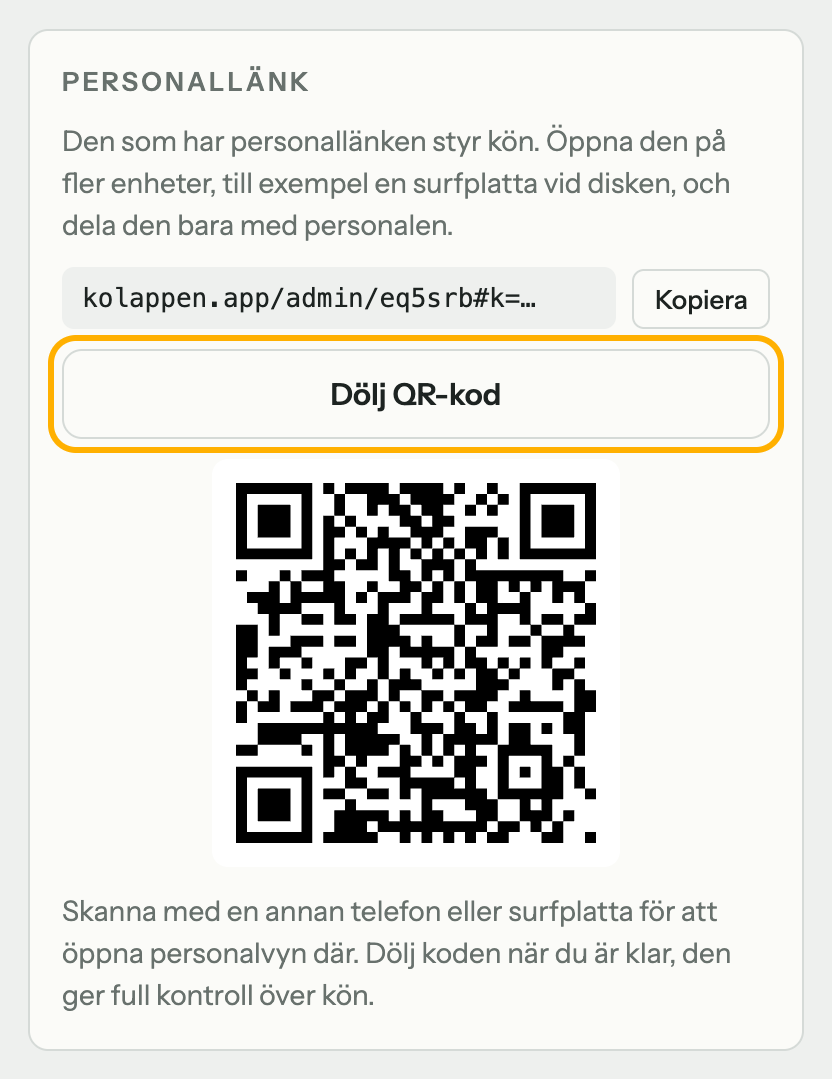
The staff link is secret. Whoever has it can control the queue. Share it only with staff. Show the staff QR code under the Share tab with Show QR code for staff when a colleague needs to scan it, and hide it right afterwards. Never show it on a screen visitors can see.
Queues that aren't used for 14 days are deleted automatically.